From sign-up to your first sale, step by step
After you sign up, Waiteroo walks you through setting up your restaurant: the kind of place it is, your business details and VAT, the menu, tables, devices, staff, printing, payments and the QR menu. Skip a step and it waits on your checklist.
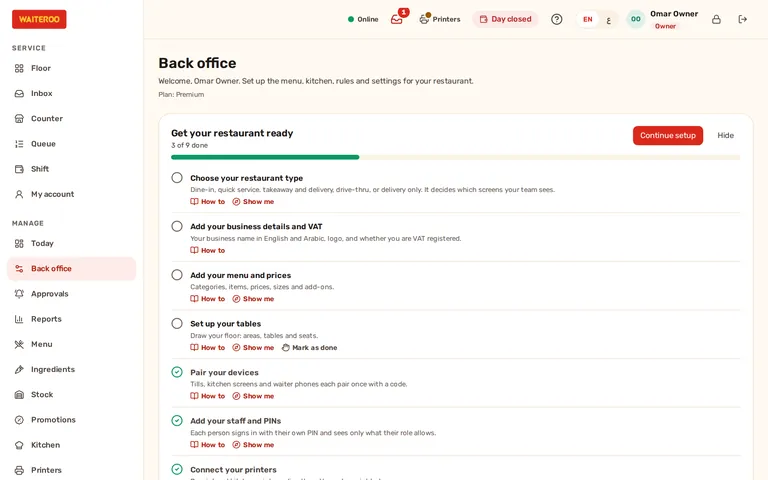
Nine steps, in your own time
The wizard opens at the owner’s first sign-in. Pick your restaurant type and the matching order types and screens are switched on. Start from a sample menu for your type, import your own from Excel or type it in. Lay out tables in a few taps, make this computer Till 1, add staff with their PINs, then send a guided test order through the kitchen to a paid receipt.
Every step can be finished later. Before the first sale, five things are needed: the restaurant type, the VAT answer, at least one menu item, a till and the owner’s PIN. Until then the till shows “Finish setup” and what is missing.
A checklist that knows what is done
On the back office home the owner sees “Get your restaurant ready”, with the progress and each step: How to opens its help article, Show me starts its tour, and a step Waiteroo cannot check can be marked as done. Optional steps, such as linking your WhatsApp number, are listed too. Restaurants that started before the wizard get the same checklist.
VAT registered or not
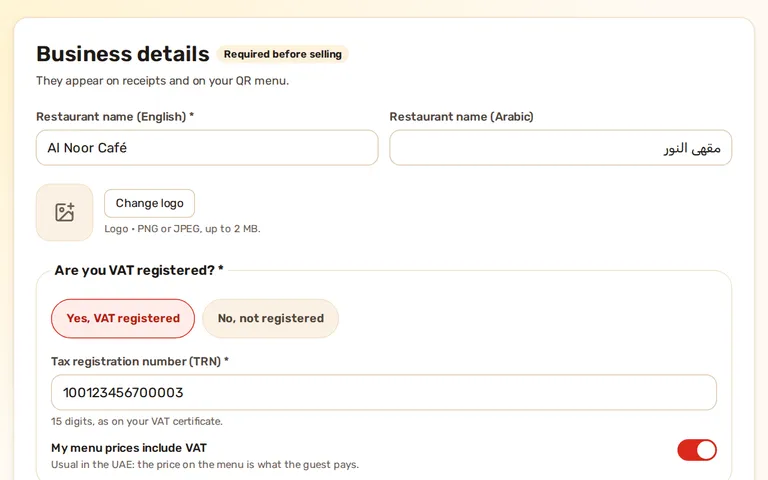
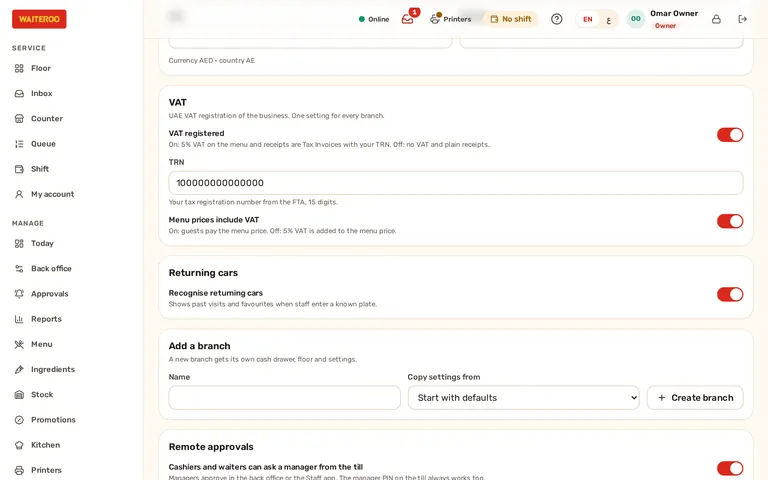
Waiteroo works for businesses that are VAT registered and for those that are not. Registered: 5% VAT on the menu and bilingual tax invoices with your TRN. Not registered: no VAT on any line, and receipts, guest checks and the Z report carry no TRN or VAT.
The owner switches it in Settings, once per company, and reviews the change before it applies. Choose too whether your menu prices include VAT, as is usual in the UAE. A refund of a sale made while registered keeps its VAT.
Help on every screen
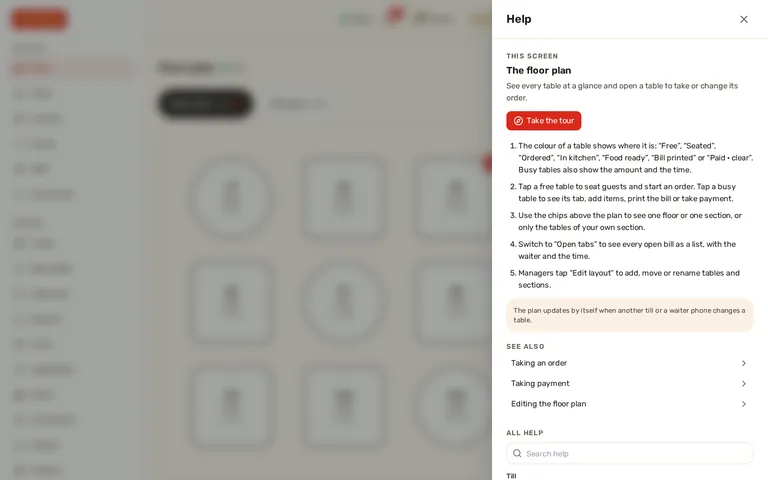
Every screen of the till, the back office, the waiter phone and the kitchen screen has a “?” button. It opens the article for that screen and your role, with a short guided tour where the screen has one. The first time someone opens a screen with a tour, a slim bar offers it once.
After an update, What’s new shows each person only the changes for their role and plan, with a Show me link. Help is in English and Arabic.
Bring your customer list with you
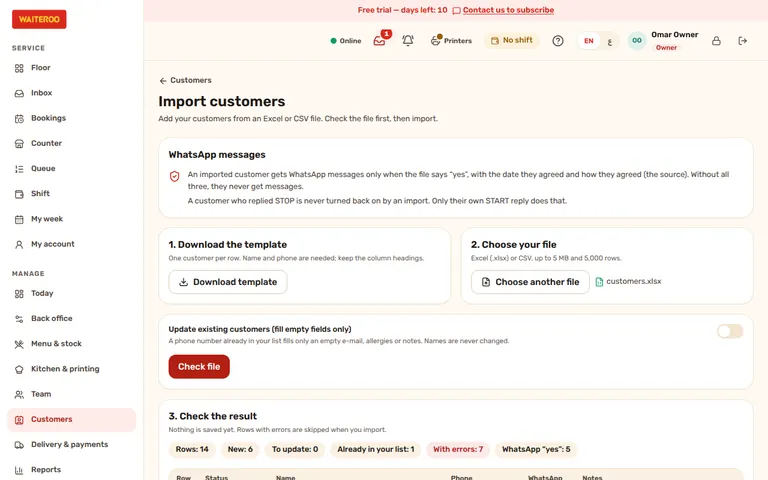
Download the template, fill in names and phone numbers, or use your own Excel or CSV file with English or Arabic headings. Waiteroo checks the file first and shows new customers, the ones already in your list and rows with errors; duplicates are found by phone number.
An imported customer gets WhatsApp messages only when the file says yes, with the date they agreed and how. Only the owner can import that agreement, after confirming it. A customer who replied STOP is never turned back on by an import.
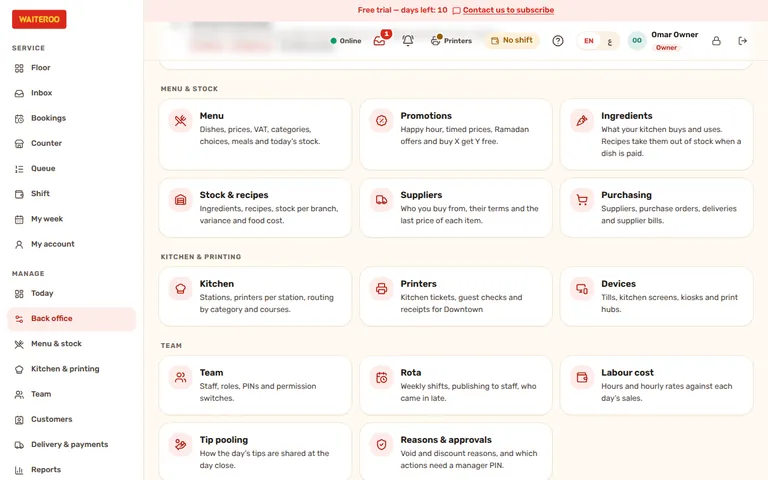
A back office in nine groups
The menu has nine groups: Today, Back office, Menu & stock, Kitchen & printing, Team, Customers, Delivery & payments, Reports and Settings. Each group opens with tabs for its pages, and the back office home shows the same groups as cards. On a phone the menu folds into a drawer.
Questions and answers
Can I finish the setup later?
My business is not VAT registered. Can I use Waiteroo?
Do my staff need training?
Can I import my customers?
Try Waiteroo in your restaurant free for 14 days
No card needed. Set it up yourself or let our team do it, and ask us anything on WhatsApp.